Configure Thunderbird for Andrew Google Mail
Although Google encourages use of Gmail (in web browser) for full use of all Gmail features, Thunderbird now supports OAuth2 which allows Gmail to provide controlled access for an app (Thunderbird). Use your username@andrew.cmu.edu email address for this process.
Please Note: Older versions of Thunderbird may not support OAuth2 or auto-configuration. We highly recommend an up-to-date stable release of Thunderbird. This configuration was tested with Mozilla Thunderbird version 150.0 (stable).
-
Start Thunderbird and enter your account information
After downloading and installing Thunderbird using the Standard configuration, it will automatically ask for your credentials.
Enter your full name and Andrew email address, then click Continue.
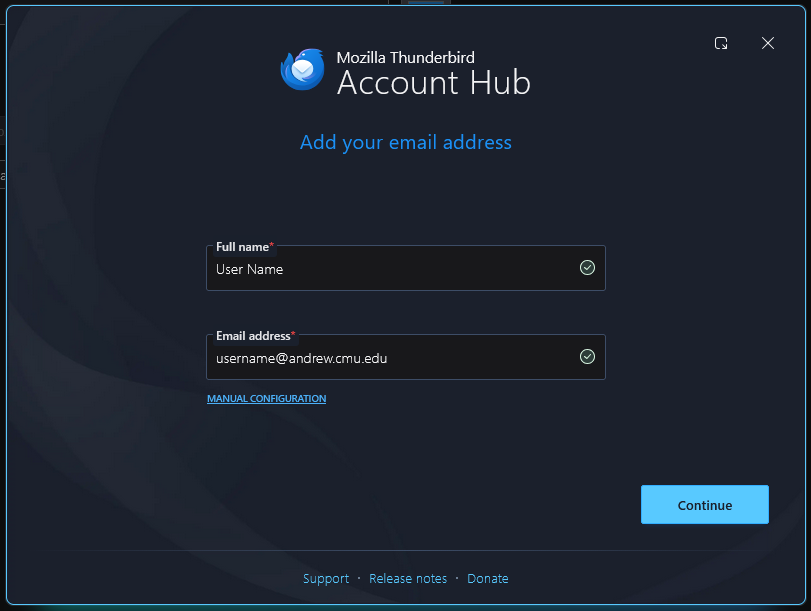
-
Manually add your account if no prompt appears
If you are not prompted to sign in immediately, you can manually add a new email address yourself.
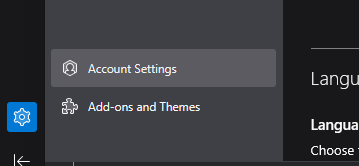
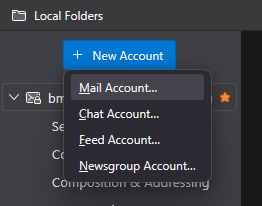
Navigate to Settings → Account Settings → +New Account → Mail Account
The window from step 1 will now be displayed on your screen.
-
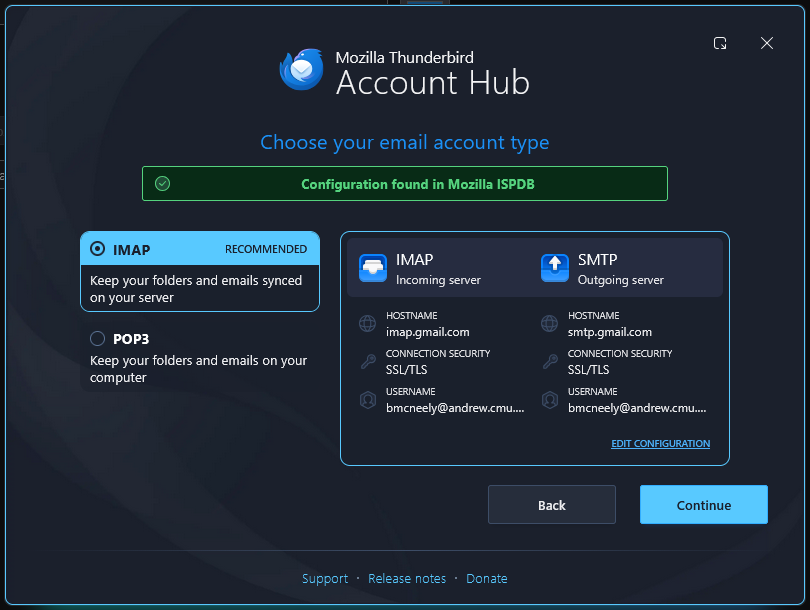
Confirm the IMAP configuration
Thunderbird will automatically pull the IMAP configuration from Google. Select Continue.
-
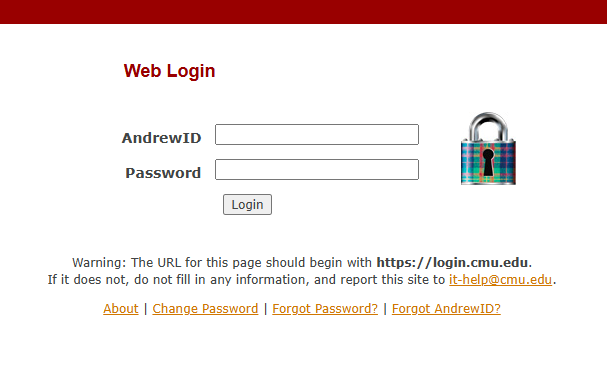
Sign in through Andrew SSO
You will be brought to the university's Andrew SSO (Single Sign On) page.
Enter your Andrew ID username and password as usual.
-
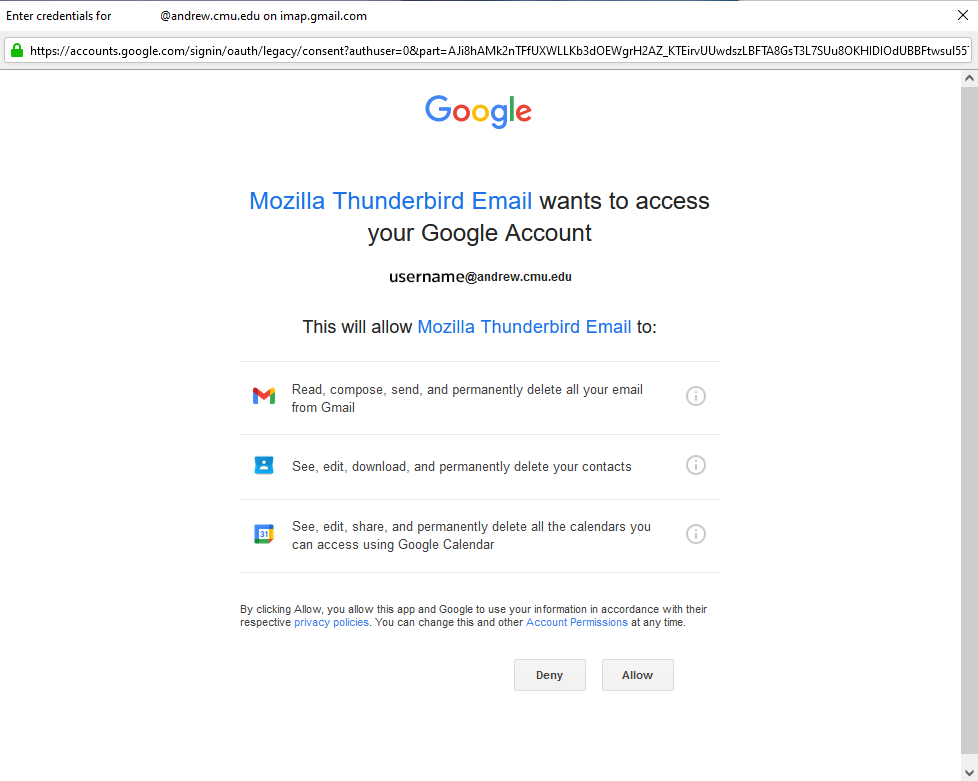
Approve account access
If prompted, allow Thunderbird to access your Google account by clicking Allow.
-
Complete setup
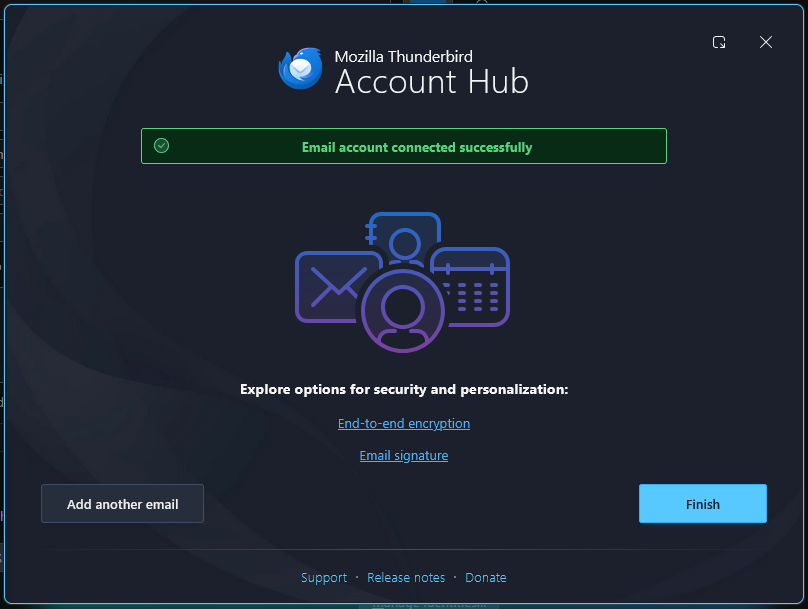
Once signed in, you will receive a message stating Email account successfully created.
You can also:
- Import your calendars and address books from Gmail.
- Alter your signature, as it may not carry over from the Gmail Web App.
- Add another email by choosing the Add another email button at the bottom left and repeating this process.
-
Mail download & final checks
Thunderbird should begin to download your mail and folders. Depending on the amount of emails you have stored, this process can be lengthy. Please keep the application open and remain connected to the internet to allow the emails to download.
You can also send an email to test the account is sending successfully.
You've now configured your Andrew Google Mail account in Mozilla Thunderbird.
Note: When managing multiple accounts in your Thunderbird client, ensure you are sending mail from the appropriate account.
Add your Andrew Google Mail
Was this page helpful?
Use this box to give us feedback on this webpage and its content. If you need a response, please include your Andrew ID.
Need technical support? Submit a ticket